Published · Updated · By the Screen Trace team
Want to know which apps were active on your iPhone yesterday, or what happened during a particular evening? Start with the question you want to answer: total usage, activity around a time, and an exact sequence of events need different kinds of records.
Where can you see app activity history?
For a quick overview, open Settings → Screen Time and review the app activity report. Battery settings offer a second view of recent activity. If you need to organize more detailed events, a diagnostic archive may contain additional records.
There is no single iPhone screen that guarantees a complete, timestamped list of every app opening, exit and action. Use the available sources together, keeping their different purposes in mind.
| Your question | Start here | What to look for |
|---|---|---|
| How long did I use an app? | Screen Time | Usage for the selected day and device |
| Was an app active around that time? | Screen Time and Battery | Available time breakdowns and activity types |
| Which retained events appear in sequence? | Diagnostic records | Recognizable app and device events, with source context |
| Who read a particular message? | These sources cannot answer that alone | App activity does not establish identity or viewed content |
1. Start with Screen Time
- Open Settings → Screen Time.
- Tap See All App & Website Activity, or the equivalent activity-report entry.
- Select the relevant day or week.
- Choose an app to inspect the breakdown available on your version of iOS.
- If reports include several devices, select the intended iPhone.
Screen Time is useful for reviewing usage totals and patterns. If activity collection was not enabled during the period you want, enabling it now does not reconstruct previously uncollected history.
A summary bar is not a minute-by-minute playback. For example, activity somewhere within an hourly interval does not establish the exact minute the app was opened.
Reference: Apple — Get started with Screen Time on iPhone. Menu labels may vary by iOS version.
2. Use Battery activity as a second view
Open Settings → Battery and inspect the app breakdown. Depending on your iOS layout, select View All Battery Usage, a day or a graph interval; older layouts may offer Show Activity.
Look for on-screen and background activity where those labels are available. Use the date range displayed on your device.
Battery records help explain app activity alongside power use. A background entry is not the same as a person opening the app: ordinary syncing, downloads or audio playback can happen without someone reading the screen.
For a closer comparison, read Screen Time vs. Battery activity.
Reference: Apple — Check battery usage on your iPhone.
3. Narrow your question to a specific period
Instead of asking “What happened on my phone?”, write down something you can compare: “Which app activity is visible on this iPhone between 9:00 and 9:30 pm on November 4?”
- Confirm the date and device. A weekly total or another device’s activity can answer a different question from the one you intended.
- Note your own use. Include times when you remember unlocking the phone, playing music or leaving a download running.
- Record the time zone. Pay attention to travel and periods spanning midnight.
- Save the original view. Keep screenshots with the selected date and labels visible.
Do not use the order of app-switcher cards as an opening history. Those cards do not provide the timestamps needed to reconstruct a particular evening.
4. Review retained diagnostic events with Screen Trace
When you need more context than a usage total, a sysdiagnose archive may contain recognizable app and device events. It is a collection of troubleshooting material, not a guaranteed complete audit of every interaction.
Screen Trace is our iPhone app for turning supported records from an archive you choose into a readable timeline and PDF report.
- Preview the free anonymous sample. See how the report presents events before deciding whether it suits your question.
- Follow the in-app collection guide. Generate and save the full diagnostic archive, keeping the original file intact.
- Import and check the file. Format and readability checking is free.
- Review the analysis options and purchase terms. Generating a report for a real file uses a paid report credit.
- Find the target period. Compare the event types and available timestamps, including supported lock or unlock indicators where present.
Standard and complete analysis cover different categories; check the current in-app description. Passing a file check does not guarantee the date, app or event you want is present. Buying a broader analysis option cannot recover records the archive does not contain.
Diagnostic archives and report content are processed on your device rather than uploaded to our servers. Screen Trace does not provide a message-reading history, typed text or a list of photos someone viewed.
Collection resource: Apple Developer — Profiles and Logs. Apple’s diagnostic resources are not an endorsement of this app or its interpretations.
Read a timeline without turning events into assumptions
A timeline can make the order of retained events easier to follow. The meaning of each entry still matters.
| Visible record | Reasonable next check | What it does not establish |
|---|---|---|
| An app event at 21:12 | Is the source indicating foreground use or another process event? | Which conversation or screen was viewed |
| A later lock indicator | How does it relate to the surrounding records? | Continuous use since the previous entry |
| No entry during an interval | Does the file cover that interval and event category? | That the phone was definitely unused |
Do not subtract two arbitrary neighboring timestamps and label the result as confirmed usage duration. The events must define a meaningful start and end, and missing records can change the interpretation.
If your main concern is possible physical access to the phone, use our four-method guide to checking whether someone used your iPhone.
Frequently asked questions
How far back can I check app history?
Check the range each source actually displays or contains. Screen Time, Battery and diagnostic archives have different collection and retention rules. Screen Trace does not promise a fixed number of days.
Can I see the exact time every app was opened?
Not reliably for every app and every date. Usage summaries are aggregated, and diagnostic records may be incomplete or describe activity other than a foreground opening.
Can installing Screen Trace show activity from before installation?
Possibly, if the archive you import still contains supported records from that period. Installation does not recreate missing historical data.
Is App Privacy Report the same as app usage history?
No. Permission and network access answer different questions from time spent using an app. See our guide to Screen Time, App Privacy Report and diagnostic logs.
Can these records tell me who used an app?
No. An activity entry alone does not identify the operator or prove that private information was read or shared. Review only your own device or files you have explicit authorization to analyze.
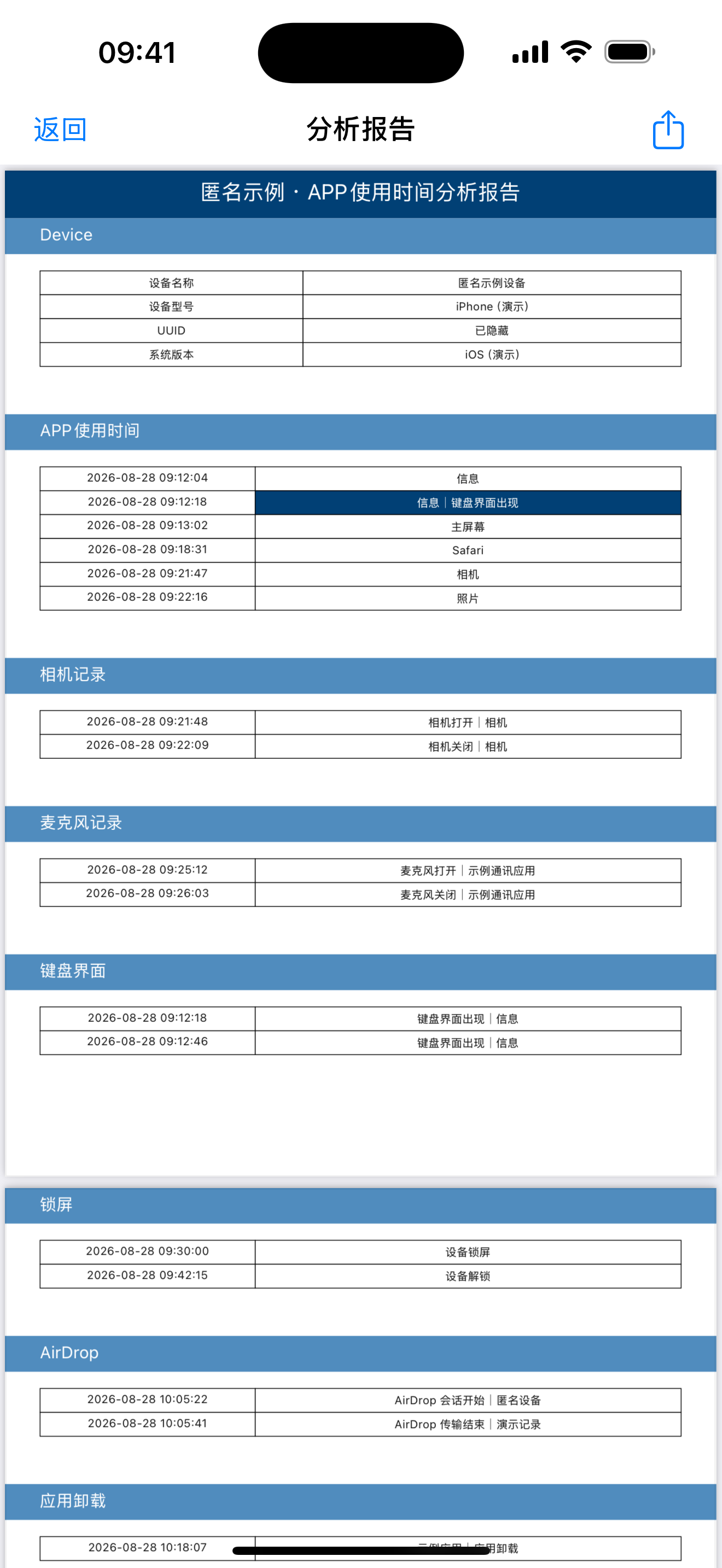
See a sample Screen Trace report
This is the built-in anonymous demonstration report, shown in Chinese with example records. It illustrates the format, not a customer’s data or guaranteed coverage for your device.
Open the anonymous sample screenshot (Chinese)
Explore Screen Trace
Preview the free anonymous sample before choosing a paid report. Free file checking verifies format and readability; it does not guarantee coverage of a particular date or event.